5. Important bits
5.1. What’s Git?
- Git
- A mild pejorative with origins in British English for an unpleasant, silly, incompetent, stupid, annoying, senile, elderly or childish person.
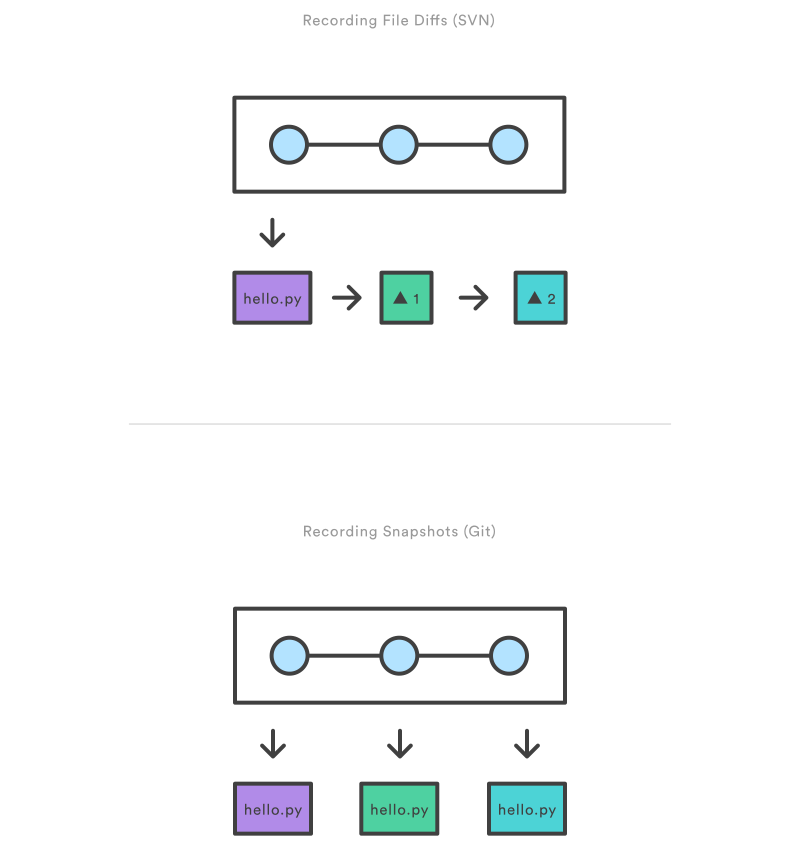
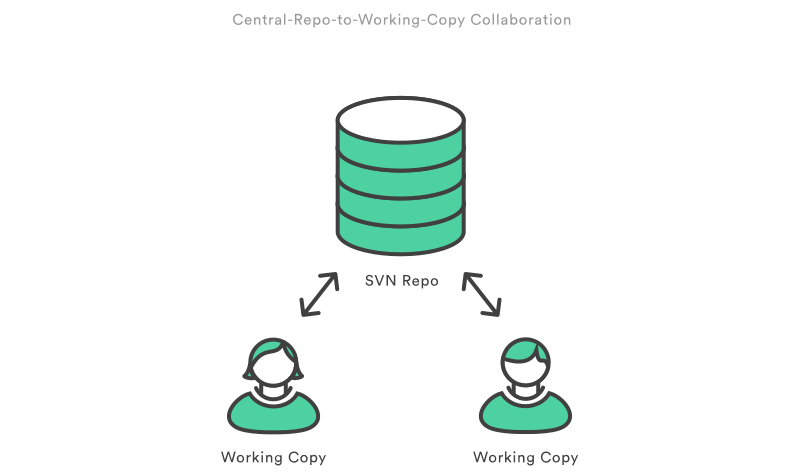
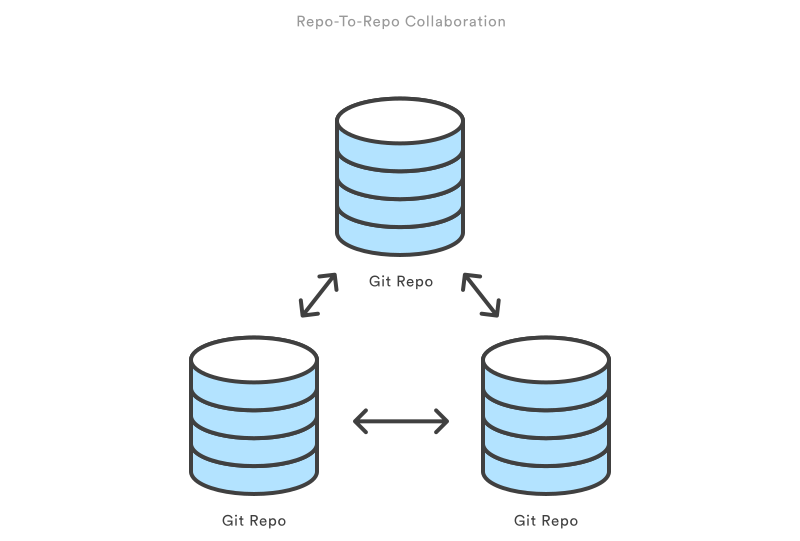
5.3. The 3 States of a File

5.3.1. Working tree (Modified)
Indicates what files have been changed.
5.3.2. Index (Staged)
Marks changed files/lines to be committed (Saved into database)
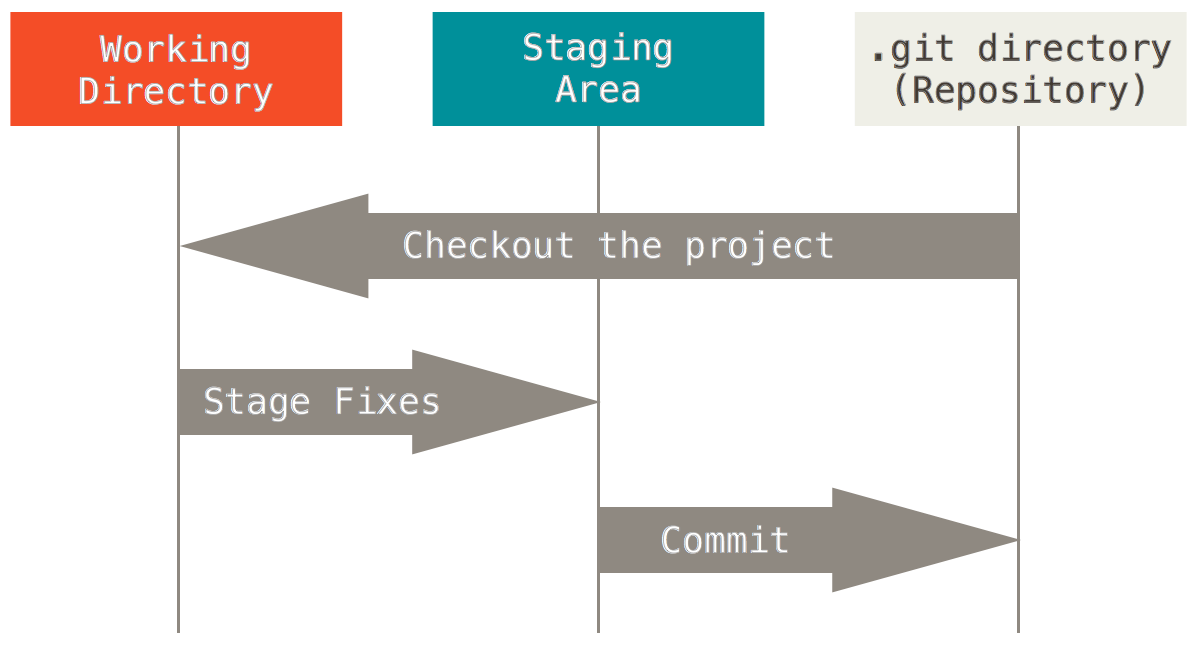
5.4. Initialize a reposotiry
5.4.1. Init
Creates an empty Git repository or reinitialize an existing one. This command creates an empty Git repository - basically a .git directory with subdirectories for objects, refs/heads, refs/tags, and template files.
Running git init in an existing repository is safe. It will not overwrite things that are already there.
$ git init
5.4.2. Clone
Clones a repository into a new directory with the same name as the repository beign cloned.
$ git clone <REPO URL>
Cloning a repository into a directory with a custom name.
$ git clone <REPO URL> <DIRECTORY NAME>
5.5. Configuration
Get and set repository or global options
$ git config --list

$ git config --global user.name "Full Name"
$ git config --global user.email email@email.com
5.6. Remotes
Reference to the project that is hosted on the internet or network somewhere. Necessary to collaborate and can be many as pleased.
5.6.1. Adding a remote
Manage the set of repositories (“remotes”) whose branches you track.
$ git remote add origin <Repository URL>
$ git remote add origin https://github.com/<USER>/<REPO NAME>.git
5.7. Working directory, Index & HEAD
5.7.1. Modifying files
Every time a file is modified it is marked as changed, and added to the working directory (automatically).
$ touch new_file.txt
$ git status
Initial commit

Untracked files:
  (use "git add <file>..." to include in what will be committed)

    new_file.txt

  nothing added to commit but untracked files present (use "git add" to track)
5.7.2. Accepting changes (Into the staging area)
This command updates the index using the current content found in the working tree, to prepare the content staged for the next commit.
$ git add new_file.txt
$ git status
On branch master

Initial commit

Changes to be committed:
  (use "git rm --cached <file>..." to unstage)

    new file:   new_file.txt
The file is now in index (staging area). Let’s make another change.
$ echo "This is a test" > new_file.txt
$ git status
On branch master

Initial commit

Changes to be committed:
  (use "git rm --cached <file>..." to unstage)

    new file:   new_file.txt

Changes not staged for commit:
  (use "git add <file>..." to update what will be committed)
  (use "git checkout -- <file>..." to discard changes in working directory)

     modified:   new_file.txt
5.7.2.1. Untracked files
On branch master
Your branch is up-to-date with 'origin/master'.
Changes to be committed:
  (use "git reset HEAD <file>..." to unstage)

    new file:   source/basics.rst

Changes not staged for commit:
  (use "git add/rm <file>..." to update what will be committed)
  (use "git checkout -- <file>..." to discard changes in working directory)

    deleted:    source/easy.rst
    deleted:    source/hard.rst
    modified:   source/index.rst
    deleted:    source/noteasy.rst

Untracked files:
  (use "git add <file>..." to include in what will be committed)

    .DS_Store
5.7.3. Visualizing differences (Working tree vs Staging area)
We have two changes on the same file. One staged and the other on the working three.
Let’s see their differences.
5.7.3.1. On the Index (Staging area)
$ git diff --cached
diff --git a/new_file.txt b/new_file.txt
new file mode 100644
index 0000000..e69de29
5.7.3.2. On the Working tree
$ git diff
diff --git a/new_file.txt b/new_file.txt
index e69de29..0527e6b 100644
--- a/new_file.txt
+++ b/new_file.txt
@@ -0,0 +1 @@
+This is a test
5.7.4. Applying changes (Commiting)
Stores the current contents of the index in a new commit along with a log message from the user describing the changes.
$ git commit -m "Added new file"
5.8. History (Log)
Shows the commit logs.
$ git log
 commit 911d366873ec0df5ffed8531176e94c0ceadf7f8
 Author: Dave Rivera <daverivera90@gmail.com>
 Date:   Wed Nov 25 10:20:39 2015 -0500

     Added new file
5.9. Back to the past (Resetting)
The way to reset a file may vary according to the state of the file.
5.9.1. Reset working directory
checkout switch branches or restores working tree files.
$ git checkout -- new_file.txt
5.9.2. Removing from the stage area
reset resets current HEAD to the specified state
$ git status
On branch master
Changes not staged for commit:
  (use "git add <file>..." to update what will be committed)
  (use "git checkout -- <file>..." to discard changes in working directory)

      modified:   new_file.txt

  no changes added to commit (use "git add" and/or "git commit -a")

$ git add new_file.txt
$ git status

On branch master
Changes to be committed:
  (use "git reset HEAD <file>..." to unstage)

    modified:   new_file.txt

$ git reset new_file.txt
Unstaged changes after reset:
M new_file.txt
$ git status
On branch master
Changes not staged for commit:
  (use "git add <file>..." to update what will be committed)
  (use "git checkout -- <file>..." to discard changes in working directory)

    modified:   new_file.txt

  no changes added to commit (use "git add" and/or "git commit -a")
5.10. Collaboration
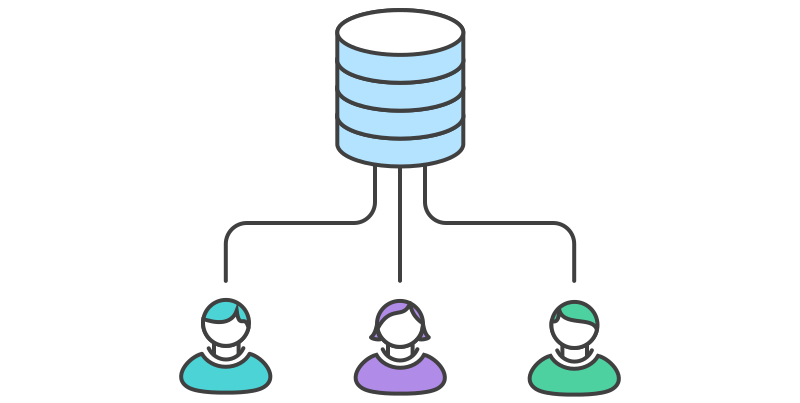
5.10.2. Pulling
pull Fetches from origin and integrates with another repository or a local branch
$ git pull origin master
5.10.3. Pushing
$ git push origin master
5.11. Branching
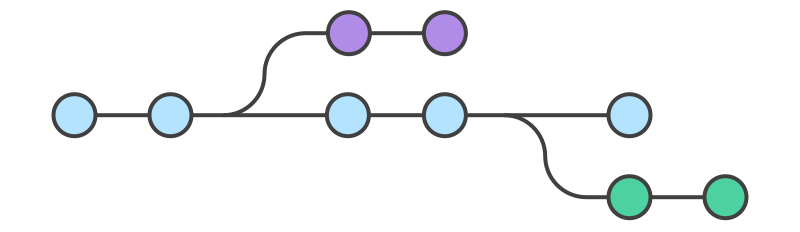
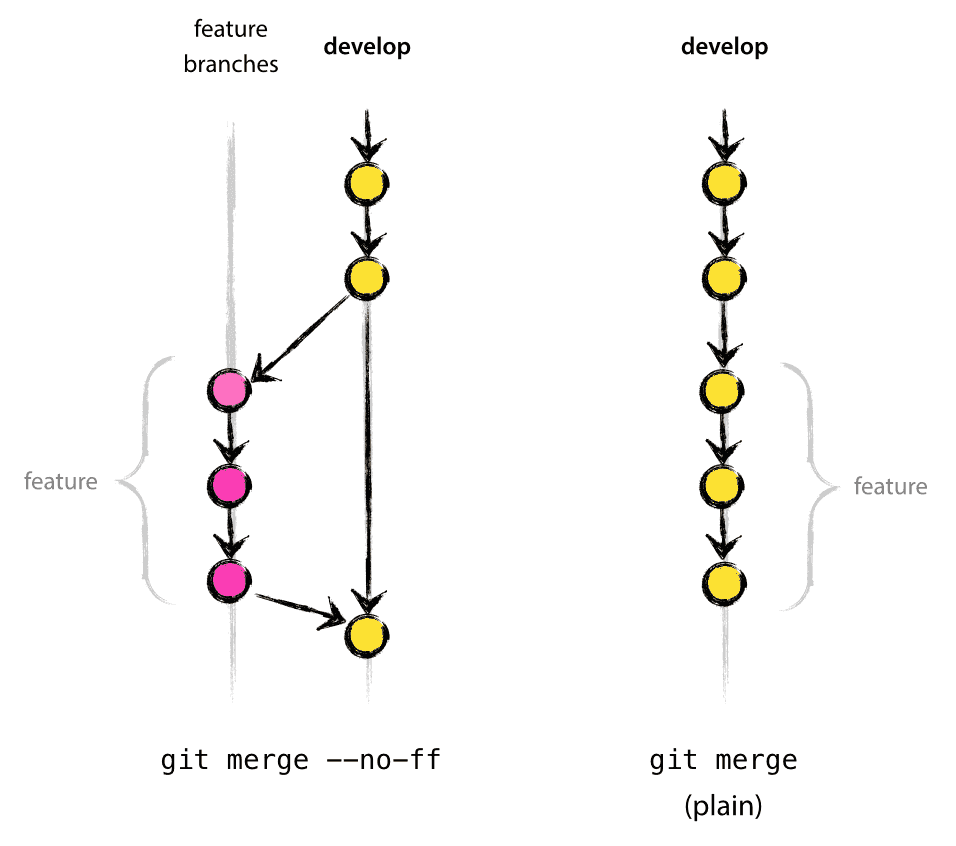
A branch represents an independent line of development. It maintains an specific state of the files.
This facilitate the process of editing/staging/committing discussed before. New commits are recorded in the history for the current branch.
The git branch set of commands allows to create, delete, list or rename branches. Although it doesn’t allow to switch between branches.
5.11.1. Create branches
$ git branch <Branch Name>
5.11.2. Move among branches
$ git checkout <Branch Name>
5.11.3. Delete branches
$ git branch -d <Branch Name>
5.11.4. Pushing branches
$ git push origin <Branch Name>
5.11.5. Delete remote branches
$ git push origin :<Branch Name>